Run tens to hundreds of sub-agents at once with Claude Code's Dynamic Workflows
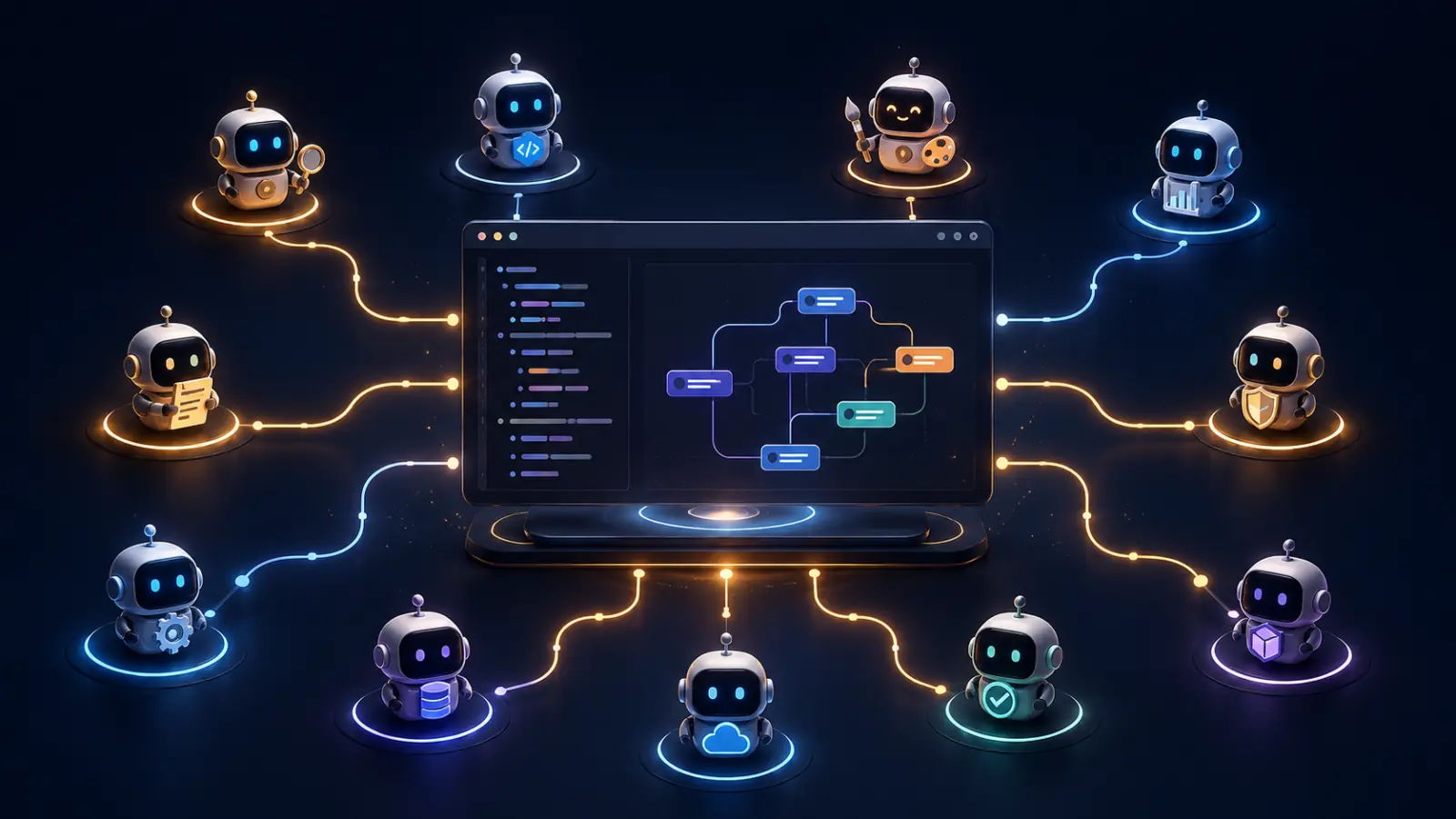
Table of Contents
Have you ever felt that Claude "can't quite keep up" when you ask it to investigate bugs across an entire service or handle a migration spanning hundreds of files in a single conversation? There is a limit to the "scope that can be seen at once" in the way Claude handles things sequentially by itself. Context windows are finite, and as the amount of investigated content increases, the things seen at the beginning get pushed out.
That's where the newly added Dynamic Workflows comes in. Claude writes an orchestration script on the spot tailored to the task, runs dozens to hundreds of sub-agents in parallel according to that script, and handles the big job by dividing it up. Moreover, the session doesn't stop during execution, allowing us to continue with other work.
Currently positioned as a "research preview," it is available in Claude Code v2.1.154 and later. While it's still a developing feature, the concept itself is slightly different from previous sub-agents and quite interesting, so let's take a close look at how it works.
What are Dynamic Workflows?
In a nutshell, Dynamic Workflows is "JavaScript for bundling sub-agents at scale."
Claude Code already had a mechanism to offload tasks to another Claude (sub-agent). What's new about Dynamic Workflows is that Claude writes out the plan itself—"which agent to run, in what order, and how many"—as code.
The flow is as follows:
- Tell it what you want to do in words.
- Claude writes an orchestration script for that task.
- A dedicated runtime executes the script in the background, running sub-agents in parallel.
- Intermediate results are cross-referenced and verified, and only the final answer is returned to us.
The key point is that the plan is not just in Claude's head (context) but is captured in a visible form as a script. You can read the script, and if you like it, you can save it and run the same procedure as many times as you want. Since intermediate progress is stored in script variables, only the final conclusion returns to Claude's context. This is exactly why it can tackle tasks on a scale that a single conversation cannot handle.
It is suitable for situations such as:
- Bug investigations spanning the entire codebase.
- Migrations involving hundreds of files (framework transitions, API deprecations, language ports, etc.).
- Research where you want to cross-reference and verify multiple information sources.
- When you want to draft and compare designs from several angles because the design is too heavy to decide in one go.
Differences from Sub-agents and Skills
Claude Code already has several ways to handle multi-step tasks: Sub-agents, Skills, and now Workflows. Since it's easy to get confused, let's organize them by "who holds the plan (arrangement)."
| Sub-agents | Skills | Workflows | |
|---|---|---|---|
| Identity | Worker launched by Claude | Instruction manual followed by Claude | Script written by Claude and executed automatically |
| Who decides what to run next | Claude (per turn) | Claude (following instructions) | Script |
| Storage for intermediate results | Claude's context | Claude's context | Script variables |
| Reusable components | Worker definition | Instruction content | The orchestration itself |
| Scale | A few per turn | Similar to sub-agents | Dozens to hundreds per execution |
| When interrupted | Turn must be restarted | Turn must be restarted | Can be resumed within the same session |
In sub-agents and Skills, the orchestrator is Claude itself. It decides "what to run next" every turn, and all results return to Claude's context. In contrast, Workflows has the script side handle loops, branching, and holding intermediate results. By moving the plan into code, the advantage is that you can incorporate reusable quality patterns rather than just increasing the number of agents.
For example, you can have multiple independent agents critically review each other's findings before reporting, or have several drafts of a design made from different angles to weigh them against each other. This makes the results more reliable than a one-off process.
Differences from Agent Teams
So far, we've compared it to sub-agents and Skills, but there's one more mechanism most similar to workflows in terms of "bundling multiple agents in parallel": Agent Teams. Those who usually ask things like "Organize an Agent Team and have them investigate from each of these perspectives" might be curious about the difference.
Agent Teams is a mechanism where a lead Claude session spins up multiple "teammates" and coordinates them through a shared task list and message exchanges. Teammates are real Claude Code sessions with their own independent contexts and can send direct messages to each other via mailboxes. Furthermore, we can talk to individual teammates directly without going through the lead to correct course midway. Note that Agent Teams is an experimental feature and is disabled by default. It becomes available by enabling CLAUDE_CODE_EXPERIMENTAL_AGENT_TEAMS (Claude Code v2.1.32+).
While both are the same in terms of "running agents in parallel," their characters are quite different.
| Agent Teams | Dynamic Workflows | |
|---|---|---|
| Position | Experimental feature (disabled by default, v2.1.32+) | Research preview (v2.1.154+) |
| Who holds the plan | Lead Claude (decides per turn) | Script (coded control flow) |
| Coordination between agents | Direct messaging via shared task list and mailbox | No direct interaction; script aggregates and bridges results |
| Intervention during execution | Can talk to any member at any time to correct course | No user input allowed midway (only permission checks cause pauses) |
| Scale guideline | 3–5 members recommended | Dozens to hundreds, up to 1,000 total |
| Resumption and Reuse | In-process members are not restored upon session restart | Resumable within the same session. Plans can be saved/re-run as /commands |
In short, Agent Teams is a "conversational team assembled on the spot," while Dynamic Workflows is a "set-in-code, run-and-leave pipeline."
If you want teammates to bounce hypotheses off each other or if you want to jump in and say "look here, not there," Agent Teams is suitable. Officially, it's cited as being good at collaborative and exploratory tasks, such as dividing PR reviews by perspective or getting to the root cause of a bug by having competing hypotheses disprove each other. The recommended team size is about 3 to 5.
On the other hand, when there's too much work to divide and you can't watch each piece, or when you want to run the exact same procedure every time, or when you want to mechanically cross-check results, it's time for workflows. Since the script holds control, you can't talk to it to correct course during execution, but in exchange, it can run dozens or hundreds of agents without breaking down, and you can save your favorite plans as /commands to reproduce them exactly as many times as you like.
Think about the tasks where you usually write "Organize an Agent Team..." in your skills or prompts. Among those, if there are things you want to run with the same procedure every time, or things that are too large to stay glued to, moving them to workflows and saving them as scripts will make them easier to handle in terms of reproducibility and scale. Conversely, for tasks at a stage where you want to work things out while consulting with the other party, Agent Teams should still feel more comfortable. It's better to think of them not as replacing each other, but as tools to choose based on the nature of the task at hand.
First, try it out with /deep-research
Enough theory; it's best to actually run it. To quickly get a feel for it, I recommend using /deep-research, a workflow built into Claude Code from the start.
This is a workflow that investigates a single question from multiple angles via web search, cross-references the found sources to verify them, and compiles a report with citations.
/deep-research What changed in the Node.js permission model from v20 to v22?
When you run it, Claude Code will ask for confirmation to run the workflow. Choose Yes, and the investigation will start in the background. Your current session remains free, so you can continue with other work in the meantime.
If you want to see the progress, run /workflows.
/workflows
A list of running and completed workflows will appear. Select one with the arrow keys and press Enter to open the progress view. For each phase, it shows the number of active agents, token consumption, and elapsed time. You can dive into a phase to see exactly what individual agents are investigating.
When the investigation is finished, the report returns to the session. It clearly states which source each claim came from, and claims that couldn't be verified through cross-referencing are removed beforehand. Note that /deep-research requires an environment where web search (WebSearch tool) is available.
Turning your own tasks into workflows
Once you've tried the built-in workflows and gotten a feel for it, it's time to run it on your own tasks. There are two main ways.
Including "workflow" in your prompt
The easiest way is to include the word workflow somewhere in your prompt. You can run that single instance as a workflow without changing the entire session's settings.
Audit all API endpoints under src/routes/ for missing authentication checks using a workflow.
When you write this, Claude Code highlights the word workflow as you type and, instead of processing it itself turn-by-turn, writes a workflow script for the task.
By the way, if workflow reacts when you didn't mean it to, you can press alt+w to ignore it for that prompt. This is useful when you just wrote the word, like "talking about organizing a workflow."
Letting Claude decide with /effort ultracode
Another way is to use the new effort (thinking intensity) level called ultracode.
/effort ultracode
ultracode is a setting that combines xhigh reasoning intensity with automatic workflow orchestration. When this is enabled, Claude will judge for itself whether "this task is worth making into a workflow" without you having to ask. A single request might be split into multiple workflows—for example, a workflow to understand the code, a workflow to make changes, and a workflow to verify them.
Consequently, token usage for all tasks in the session will increase, and it will take more time. ultracode is only valid for that session and resets when you start a new one. When returning to normal work, use /effort to go back to your usual level. The default for many models is high, but you can use xhigh regularly if you want deeper reasoning (in Opus 4.7, xhigh is the default anyway). Note that ultracode is a setting only available for models that support xhigh; it won't appear in the /effort menu for unsupported models.
Pre-execution approval and permissions
Because workflows run many agents, they don't just start running; they ask for approval before execution. In the CLI, a list of planned phases is displayed along with the following options:
- Yes, run it — Execute as is.
- Yes, and don't ask again for
<name>in<path>— Execute and don't ask again for this workflow in this project. - View raw script — Read the script content before deciding.
- No — Cancel.
You can open the script in an editor with Ctrl+G or adjust the prompt before execution by pressing Tab. If you're curious about the contents, don't hesitate to peek before deciding.
Whether the confirmation dialog appears depends on the permission mode.
| Permission Mode | Confirmation Timing |
|---|---|
| Default, accept edits | Every time (except for workflows marked "don't ask again") |
| Auto | Only the first time. Selecting Yes records consent in user settings, and it starts without confirmation thereafter. When ultracode is enabled, the confirmation itself is skipped. |
Bypass permissions, claude -p, Agent SDK | Immediate execution without confirmation |
One thing to keep in mind is that this dialog only controls the "confirmation at startup." Sub-agents created by a workflow always run in acceptEdits mode regardless of the session's mode and inherit the configured tool allowlist. File edits are automatically approved.
On the other hand, shell commands, web fetches, or MCP tools not in the allowlist may ask for confirmation during execution. To avoid being interrupted in a long-running workflow, it's smoother to add the commands the agent needs to the allowlist beforehand.
Viewing progress with /workflows
As mentioned earlier, the /workflows view is the command center for workflows. You can closely monitor the progress of work happening in the background from here. Here are the keys commonly used in the progress view:
| Key | Action |
|---|---|
↑ / ↓ | Select a phase or agent |
Enter or → | Dive into the selected phase, open an agent to read its prompt, recent tool calls, and results |
Esc | Go back one level |
p | Pause / Resume execution |
x | Stop the selected agent (stops the entire workflow if focus is on the overall execution) |
r | Restart the selected running agent |
s | Save the execution script as a command (described below) |
You can also see a one-line progress summary from the task panel that appears below the input field. Move focus there with the down arrow and press Enter to expand it for details.
Saving and reusing workflows
Once an execution works as intended, you can save that script as a command. For routine tasks like "a review to run every time a branch is created," you can call the same orchestration every time.
Select the execution you want to keep in /workflows and press s. In the save dialog, you can toggle between two save locations with Tab:
.claude/workflows/(In-project) — Shared with everyone who clones the repository.~/.claude/workflows/(Home directory) — Available in all projects, but visible only to you.
Save with Enter, and you'll be able to call it as /<name> in future sessions. It will also appear alongside built-in workflows in the / autocomplete. It's easy to organize by putting procedures you want to standardize for the team in the project and your own tools in your home directory. Note that if a project workflow and a personal workflow have the same name, the project one takes precedence.
This "save and share" nature, like Skills and Hooks, is where Claude Code really starts to fit into your development flow.
Mechanism and Constraints
Let's dive a bit into the internals. What's actually running the script is an execution role called the "runtime." Think of it as a mechanism that advances the script in the background, separate from the main Claude you usually interact with. This runtime executes the script in an isolated environment disconnected from our conversation. Intermediate results are held in script variables rather than Claude's context, and the runtime records the results of each agent one by one. Thanks to these records, you can stop it and resume it within the same session.
That said, the runtime has some constraints:
| Constraint | Reason |
|---|---|
| No user input allowed during execution | It only stops for agent permission checks. If you want approval at each stage, run each stage as a separate workflow. |
| The workflow itself cannot touch files or the shell directly | Agents handle reading/writing and command execution; the script's role is strictly to bundle the agents. |
| Maximum 16 concurrent agents (fewer on machines with fewer CPU cores) | To suppress local resource consumption. |
| Total maximum of 1,000 agents per execution | To prevent runaway loops. |
When you resume a stopped workflow, completed agents return cached results, and the rest start running again from where they were. However, resumption only works within the same Claude Code session. Remember that if you exit Claude Code while a workflow is running, you'll have to start over from the beginning in the next session.
Costs and Models
Because workflows run many agents, they can visibly consume many more tokens in a single execution than handling the same task within a conversation. Official guidance explicitly states, "It's powerful but can be expensive. It consumes tokens quickly, so we want you to get a feel for it with scoped tasks first."
Execution counts toward your plan's usage and rate limits, just like other sessions. That said, you can stop a workflow at any time from /workflows, and work completed up to that point is not lost. If you feel it's running more than expected, you can just stop it midway.
Regarding models: unless the script assigns a specific stage to a different model, each agent in the workflow uses the model of your current session. Therefore:
- If you usually switch to a smaller model for routine work, check
/modelbefore a large execution. - When conveying a task, add a note like "Use a smaller model for stages that don't require the strongest model."
With these small steps, you can control costs to some extent. It's safest to start small—for example, auditing under a single directory—to experience how many tokens it uses in your project.
Disabling workflows
I haven't had a reason to turn this feature off yet, so I'll summarize based on the official documentation. When not needed, it can be turned off in the following ways:
To turn it off only in your environment:
- Turn off Dynamic workflows in
/config(persists across sessions). - Set
"disableWorkflows": truein~/.claude/settings.json(also persists). - Set the environment variable
CLAUDE_CODE_DISABLE_WORKFLOWS=1(read at startup).
If you want to disable it for the entire organization, it's guided to specify "disableWorkflows": true in managed settings or use the toggle on the Claude Code admin settings page. Once disabled, built-in workflow commands will be unavailable, the workflow keyword won't react, and ultracode will disappear from the /effort menu.
Early User Cases
Finally, I'll introduce some cases from people who have already used Dynamic Workflows, as seen in official blogs and elsewhere. These aren't my own results, but they should convey the sense of scale.
Most notable is the case of Jarred Sumner, the creator of Bun. It's reported that he used Dynamic Workflows to port Bun from Zig to Rust, generating approximately 750,000 lines of Rust and reaching a state where 99.8% of the existing test suite passes in 11 days. This case shows that even tasks like language ports spanning thousands of files can be seen through from start to finish.
Other shared uses include identifying dead code or cleanup opportunities that traditional static analysis couldn't find, advancing maintenance work. It seems to have good compatibility with tasks that are "too big for one agent but a pain to do manually," such as framework transitions or API deprecation handling.
Regarding available plans: Dynamic Workflows is available on all paid plans. It's enabled by default on Max and Team plans, and can be turned on from the Dynamic workflows line in /config on Pro. For Enterprise, it's enabled by administrators via managed settings. Additionally, it's available via the Anthropic API, as well as on Amazon Bedrock, Google Cloud Vertex AI, and Microsoft Foundry.
Summary
We've looked at Claude Code's Dynamic Workflows, from how it works to how to use it and how to think about costs. Let's recap the main points:
- Dynamic Workflows are orchestration scripts written on the spot by Claude, with a runtime bundling dozens to hundreds of sub-agents in parallel. Available as a research preview from v2.1.154.
- While sub-agents and Skills have "Claude holding the plan," the essence of Workflows is moving the plan into code. Intermediate results accumulate in script variables, and only the conclusion returns to Claude's context.
- Even among "running agents in parallel," Agent Teams (conversational progress) and Workflows (plan set in code) have different characters. Use the former for consultation/exploration and the latter for scale and reproducibility.
- You can start by getting a feel with the built-in
/deep-research, and for your own tasks, you can either writeworkflowin the prompt or use/effort ultracodeto let Claude decide. - You can check progress, pause, stop, and save from the
/workflowsview. Favorite executions can be saved as/<name>commands for reuse. - Because it runs many agents, token consumption tends to increase. It's safest to start with a small scope and use different models as needed.
How to delegate work that is "too large for a single conversation" is an unavoidable theme when incorporating agents into actual work. Dynamic Workflows has provided an answer: "make the plan itself into code that is readable, re-executable, and can be run in parallel." Although it's still a research preview, why not start by casually trying it out for scoped audits or research?