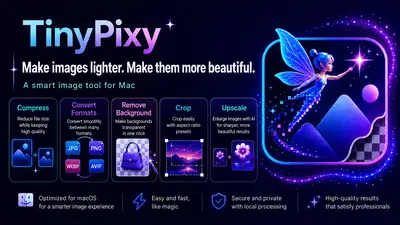
Crop images to any ratio. Added a cropping feature to TinyPixy.
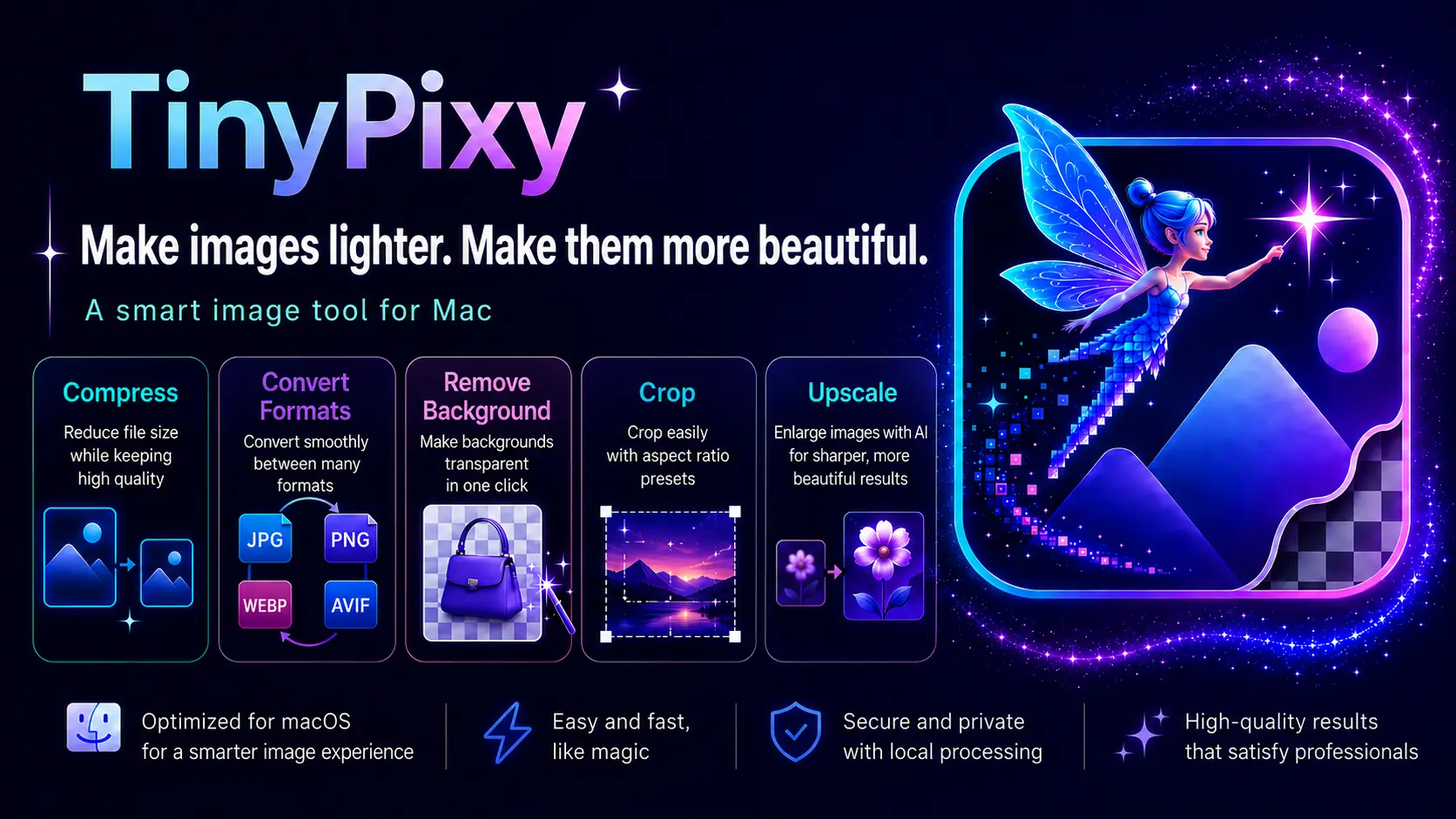
Table of Contents
In version 1.2.0 of the image processing app TinyPixy, we have added a fourth feature: the Crop tab. Until now, TinyPixy was an app where you switched between three tabs: Compress, Cutout (background removal), and AI Upscale. With the addition of "cropping to your preferred ratio," four common image preparation tasks are now gathered in a single window.
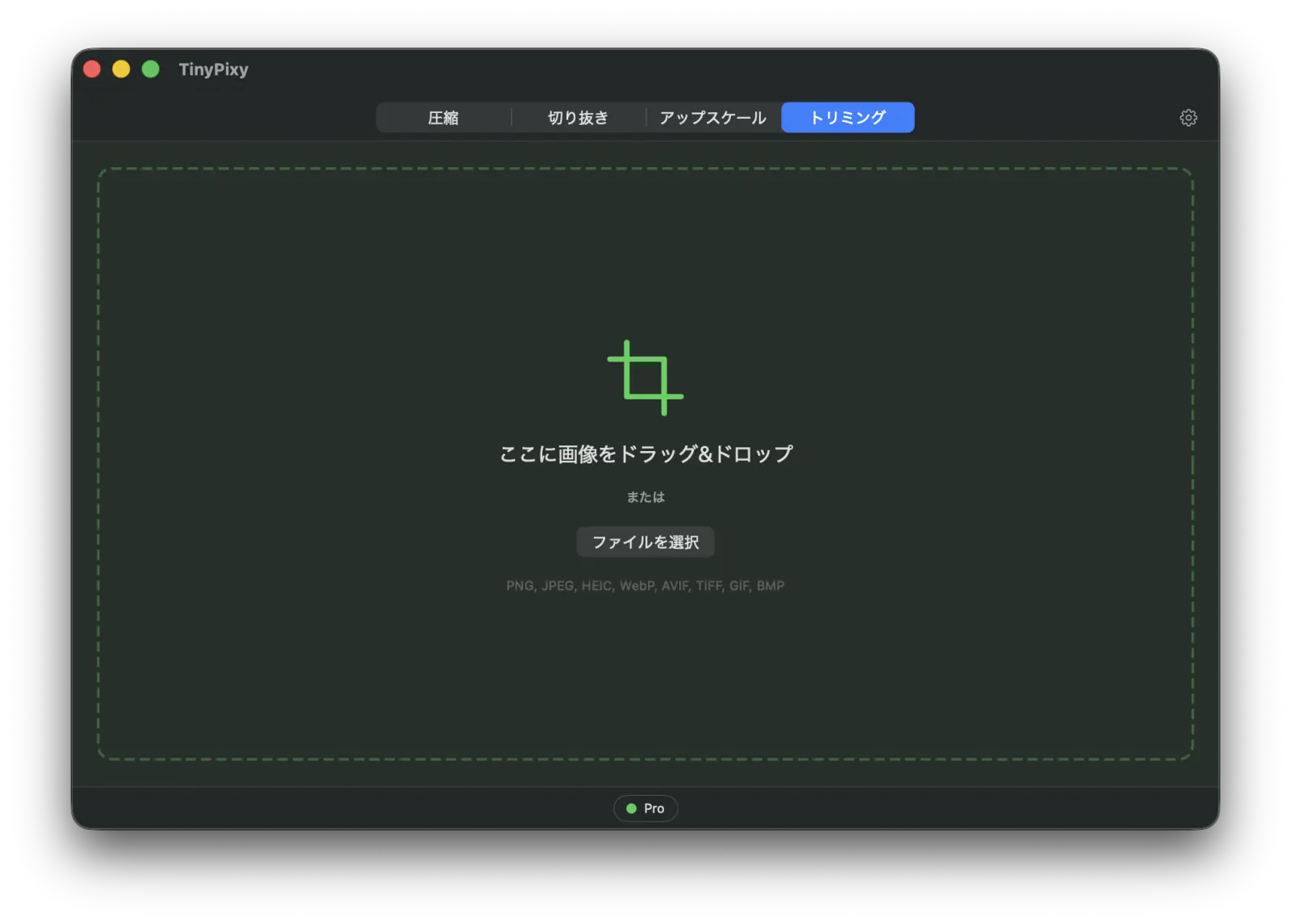
In this article, we will focus on introducing the newly added Crop tab. For a general introduction to TinyPixy, please see the first article.
Why we added cropping
After refining an image with compression, background removal, or upscaling, there are surprisingly many situations where you finally want to align the aspect ratio, such as "making it square" or "cropping to 16:9." There are fixed ratios for different purposes, such as SNS thumbnails, E-commerce product images, and profile photos.
Previously, I had to open another app just for that one extra step. Even though the processing was mostly completed within TinyPixy, it felt like a waste to have to go outside just for the final cropping. Since I felt this way myself, I added Crop as the fourth tab. Now, you can continue from making it lighter, removing the background, enlarging it, and finally adjusting the ratio, all within the same window.
Select an aspect ratio and crop in bulk
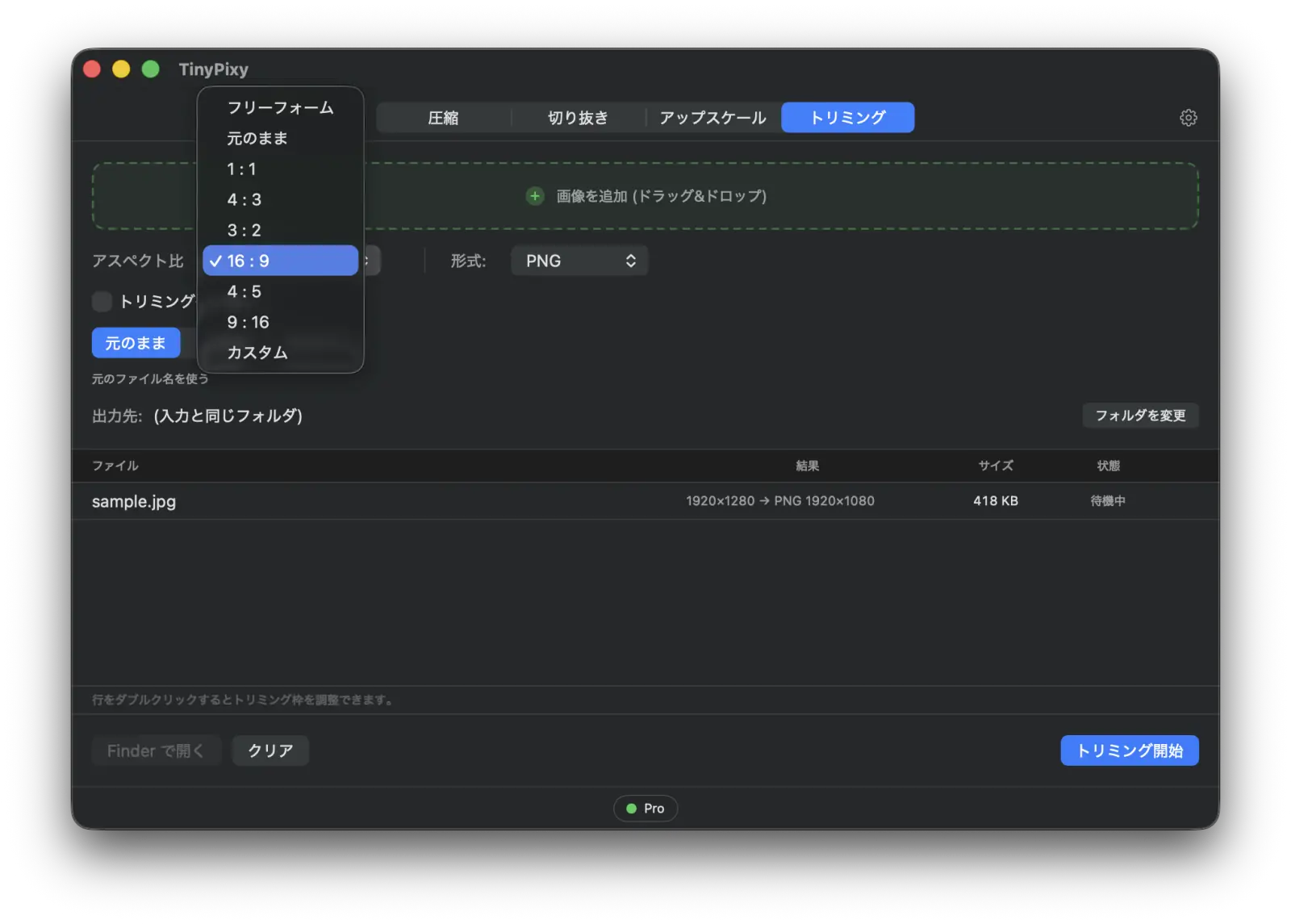
The Crop tab is straightforward to use. First, you select the aspect ratio. We provide the following ratios:
- Freeform / Original (maintain original ratio)
- 1:1 / 4:3 / 3:2 / 16:9 / 4:5 / 9:16
- Custom (specify W:H numerically)
Once you select a ratio, all loaded images are cropped based on the center within a frame of that ratio. If you drop multiple images at once, you can align them to the same ratio simultaneously, which is especially effective when you want to organize many images into the same shape.
When you want to fine-tune manually, one by one
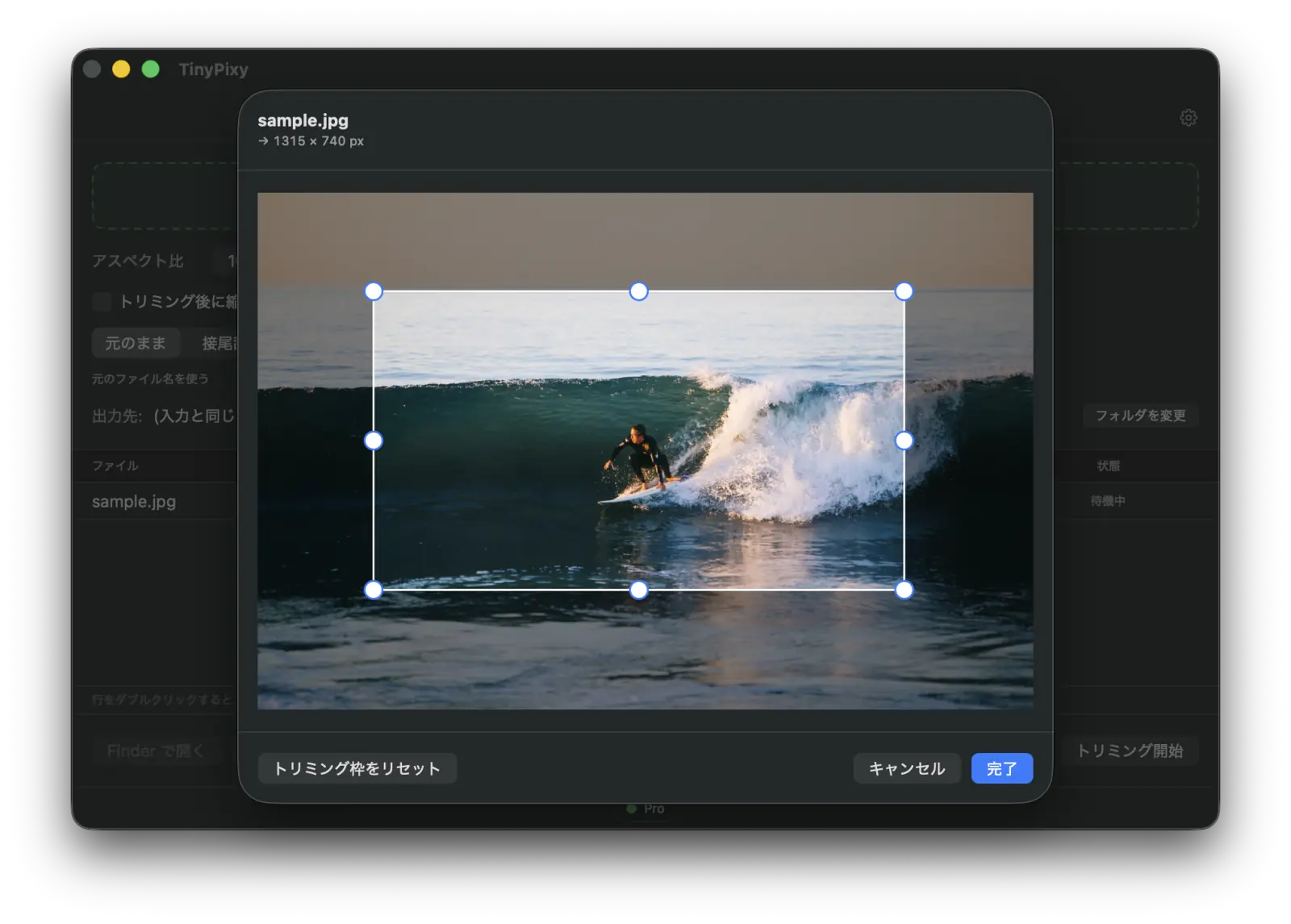
Sometimes, just aligning to the center doesn't fit the position. This happens with photos where the subject is off to the side or images where the part you want to show is shifted from the center. In such cases, double-clicking a file row opens the editing screen.
In the editing screen, you can drag the crop frame to move it or adjust the size using the handles on the four corners and each side. You can change only the size while keeping the selected ratio fixed, or switch to Freeform for a custom shape. You can also choose to manually adjust only one image while leaving the others as they are.
You can also downsize directly after cropping
Along with cropping, you can also reduce the size. If you set a maximum width or height, the image will be downsized while maintaining the aspect ratio after cropping. Since the processing is done in the order of cropping then downsizing, you can reduce it to the required size while keeping the composition you intended.
If you don't apply downsizing, only cropping is performed. In this case, pixels are cropped as they are, so the image quality does not change. The ICC profile (information for correctly reproducing image colors) is also carried over as is.
About image quality and handling
Cropping may seem like a process of just cutting out the appearance, but there are several points we pay attention to:
- Cropping without downsizing leaves the original pixels as they are. There is no need to worry about changes in color or texture.
- ICC profiles (information for correctly reproducing image colors) are preserved. This ensures that colors do not shift after cropping.
- The frame is calculated after reflecting EXIF orientation (orientation information recorded in the photo). Even photos taken with a smartphone that include rotation information can be cropped in the correct orientation.
- For export, you can choose PNG, JPEG, or maintain the original format. If the original is WebP or AVIF, it will be exported as PNG.
And like TinyPixy's other features, all of this processing is done entirely within your Mac. Your images are never sent anywhere.
Summary
We have introduced the Crop tab added in v1.2.0.
- You can crop images in bulk to fixed ratios such as 1:1 or 16:9.
- You can also fine-tune each image manually by moving the frame.
- You can complete downsizing at the same time, and cropping without downsizing is lossless.
With the addition of cropping to compression, background removal, and upscaling, image preparation can now be completed in a single flow. If you're interested, please try it with your actual images in the free version.
- Product Page / Download: TinyPixy